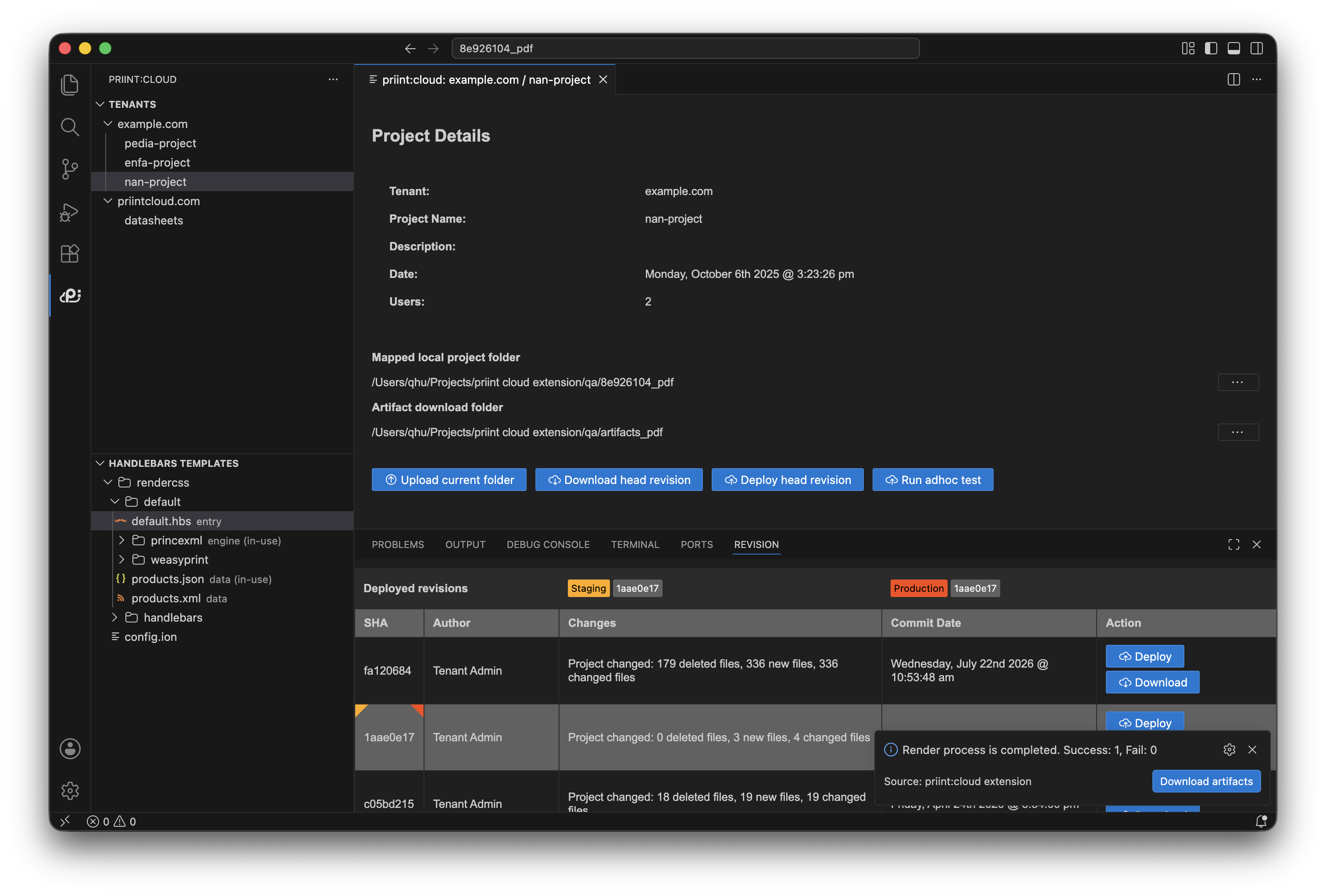
Upload, download & deploy
Upload
Where: Project detail → Upload current folder, or Command Palette → priint:cloud Upload current folder.
What happens:
- The extension zips the first open workspace folder in VS Code (the root shown in the Explorer). Files listed in
priintCloud.ignoredFilesorfilesignore.txtat the workspace root are excluded automatically. - The zip is uploaded to the selected project on priint:cloud.
- A progress notification tracks "Zipping…" then "Uploading…".
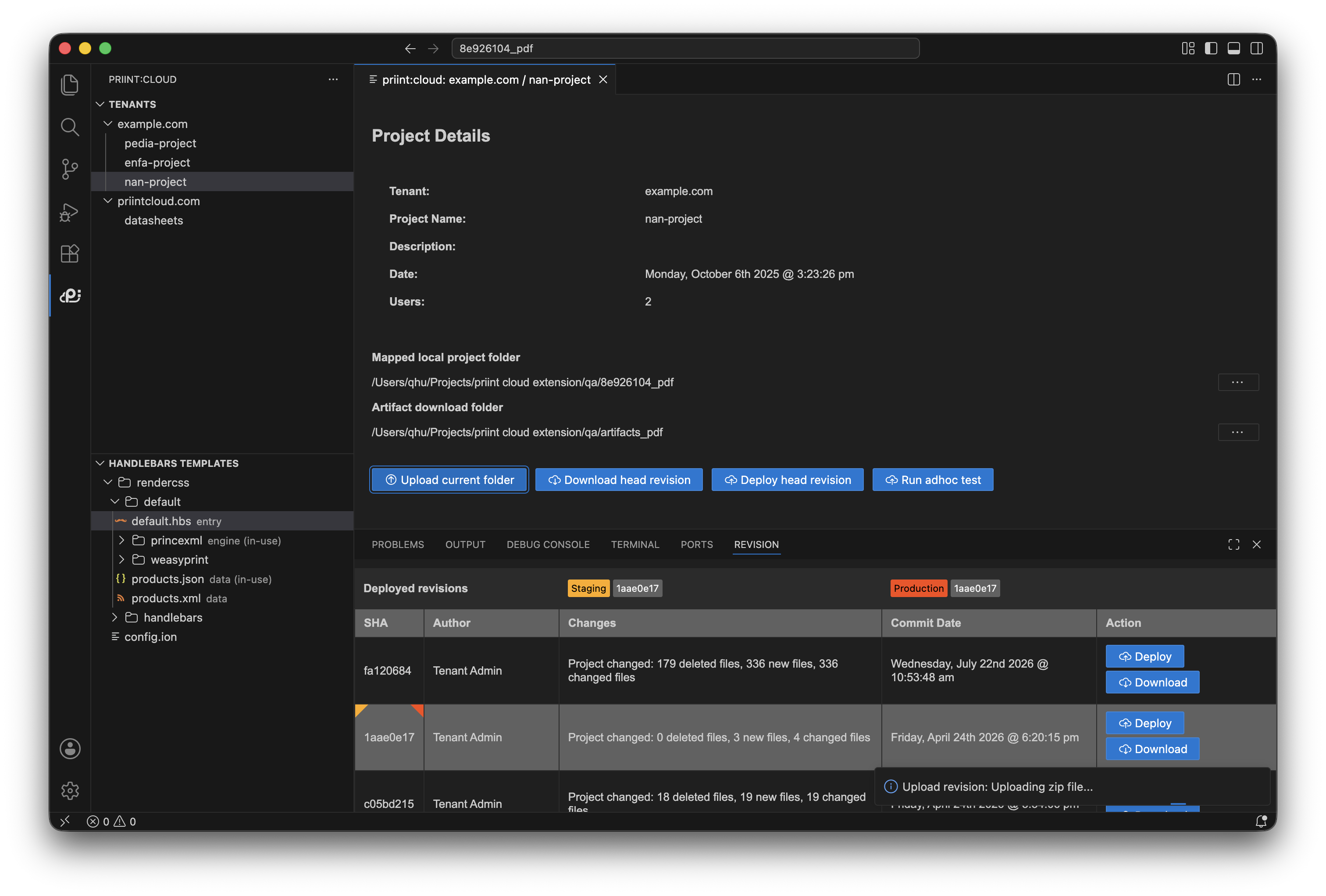
You may see:
- "Revision uploaded successfully" — upload worked; a new revision appears in the timeline.
- "Nothing changed" — the content was identical to the previous revision; no new revision is created.
- "Cannot upload revision: …" / "Cannot upload folder: …" — check your connection and that a project is selected.
Important: Upload uses the workspace folder, not the Mapped local project folder. Make sure your workspace root is the correct project directory before uploading.
Download
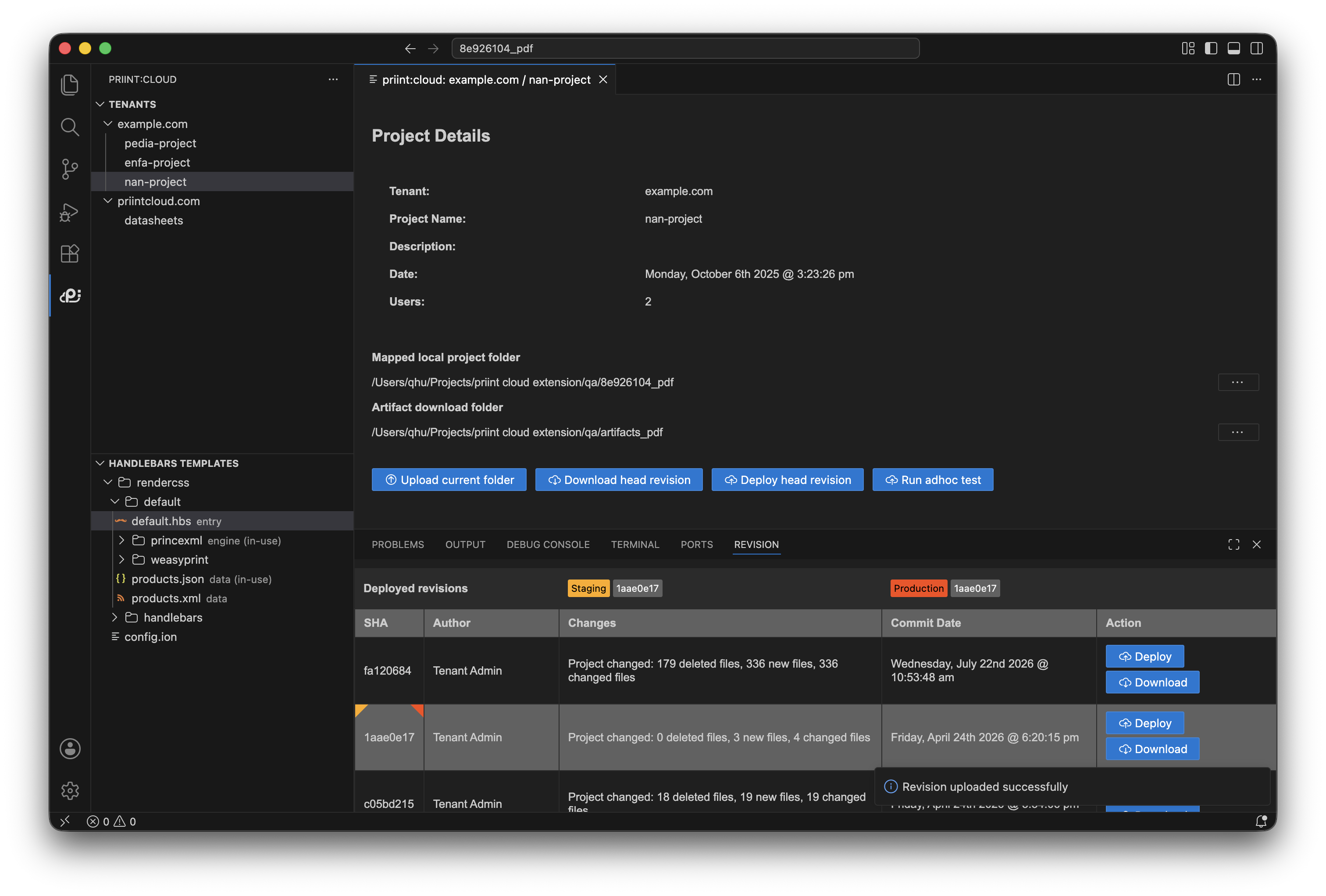
Where: Project detail → Download head revision, or per-revision Download button in the Revision timeline.
What happens:
- The extension downloads the revision as a zip file.
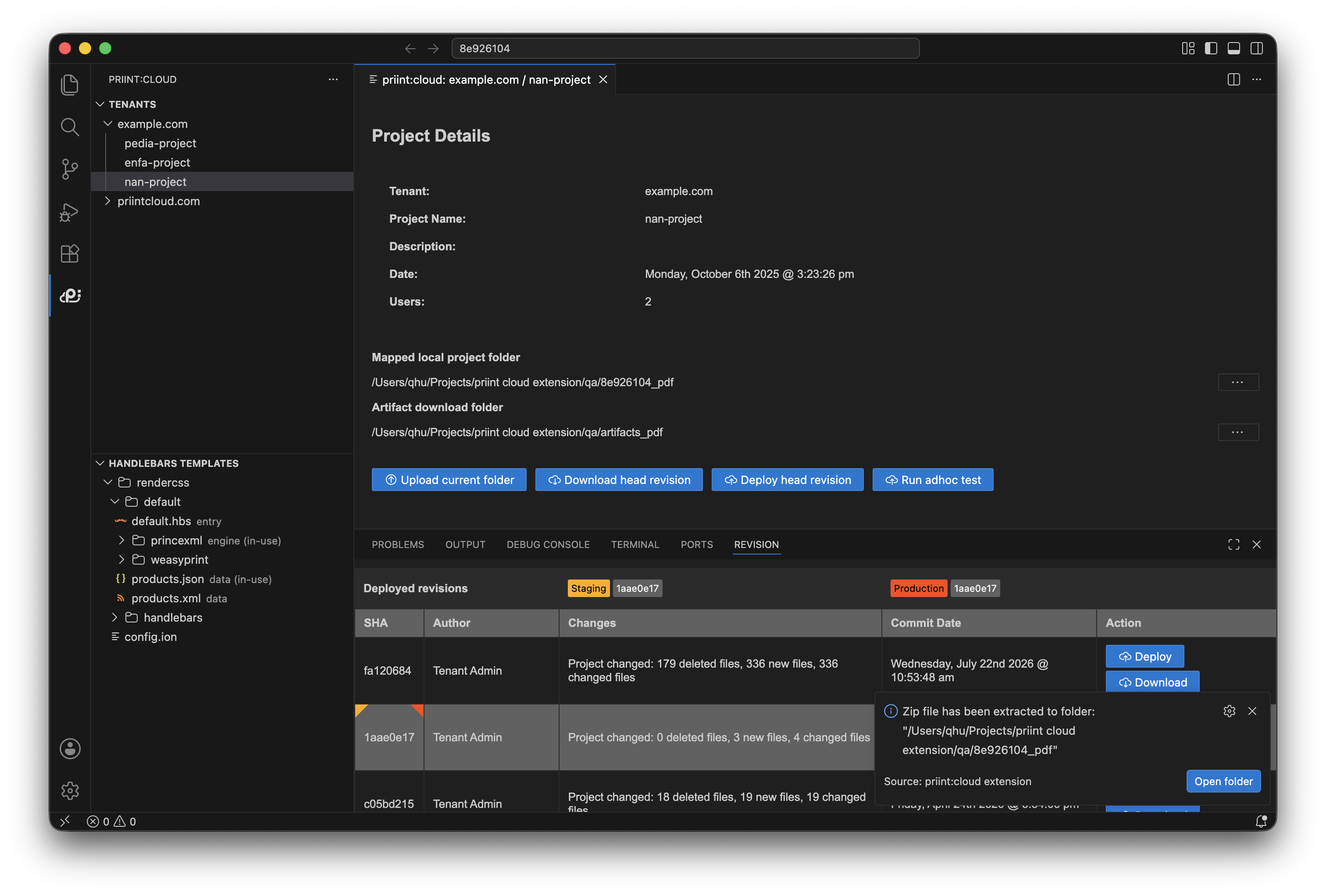
- It extracts the contents to the Mapped local project folder for this project. If no folder is mapped, a folder picker opens.
- A progress notification tracks the download and extraction.
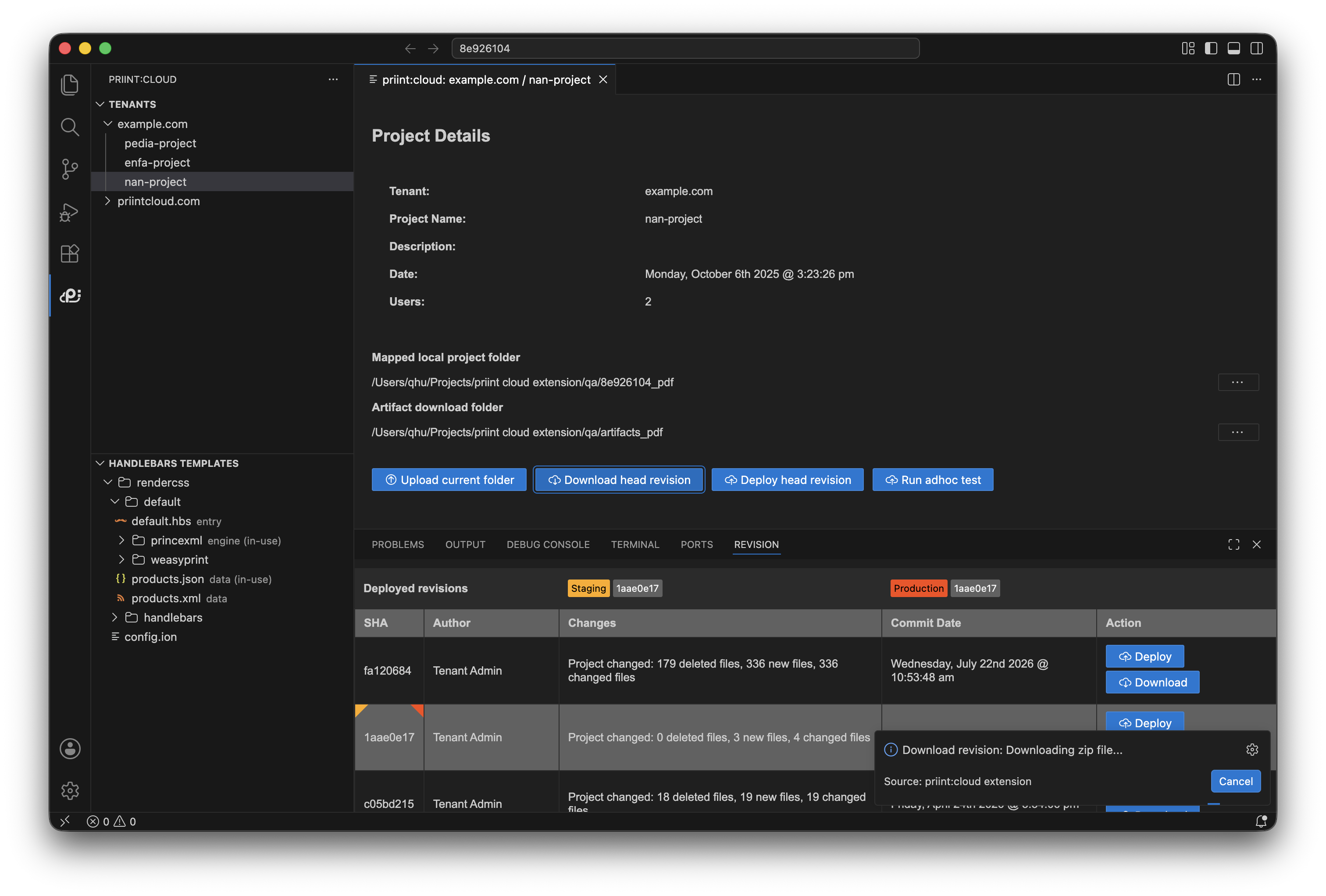
You may see:
- "Zip file has been extracted to [path]" with an Open folder link — download succeeded.
- A cancellation if you close the folder picker.
- An error if the network request fails.
Deploy
Where: Project detail → Deploy head revision (active projects only), or per-revision Deploy button in the Revision timeline.
What happens:
- The extension presents a multi-step picker: environment, profiles, render engines, and test options.
- Cancelling any step ends the process silently.
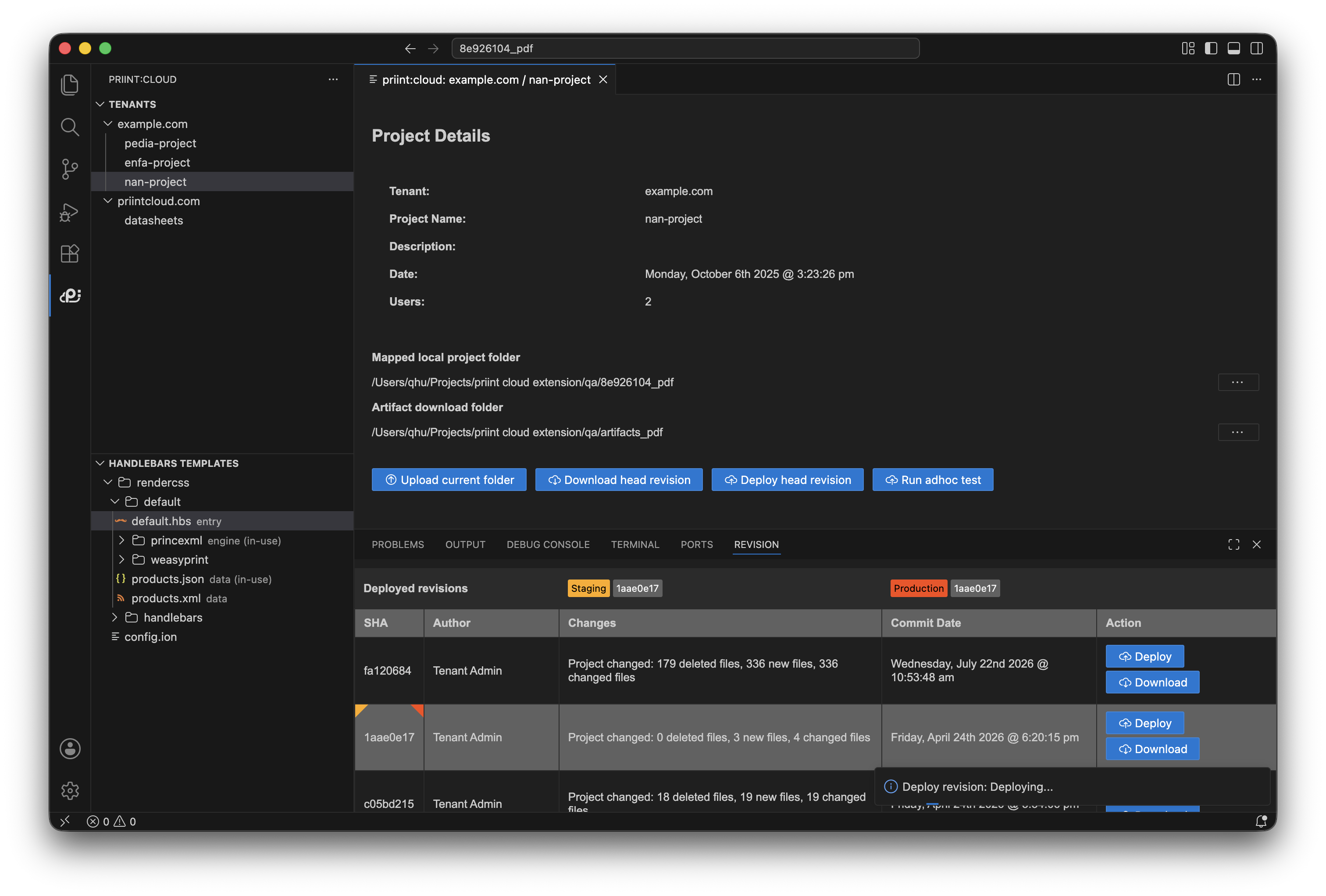
- On confirmation the deploy runs on the server. A progress notification is shown.
You may see:
- "Deployed successfully" — deploy completed.
- "Deployed successfully. Download artifacts?" — if artifacts are available, a prompt offers to download them.
- HTTP error messages ("Bad request", "Not found", "Unexpected error") — usually a configuration mismatch; check profiles and engine settings.
- "Process timed out" — the server did not respond in time; retry or check server status.
- A message that the project is deactivated — deploy is not available for inactive projects.