Edit placeholder
Continuing from Editor Panel
General
-
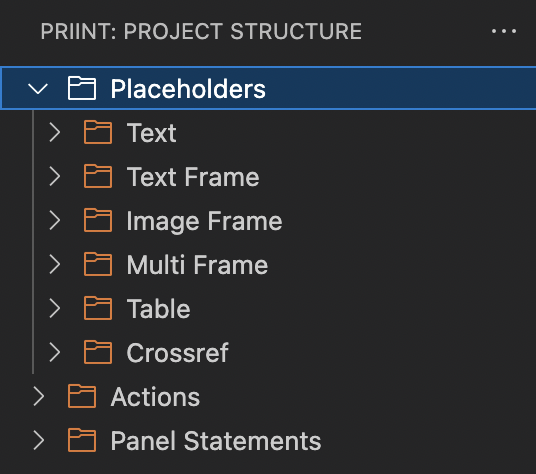
From the previous step, click on the dropdown of Placeholders with the folder icon
-
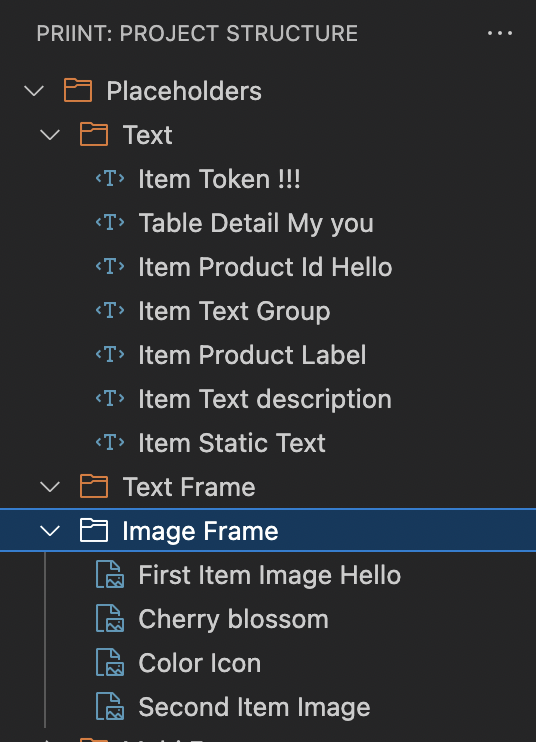
You will be met with categories of placeholders. Any placeholder with the appropriate type will be placed in the same category like below
-
You can now click on one placeholder to open the editing panel
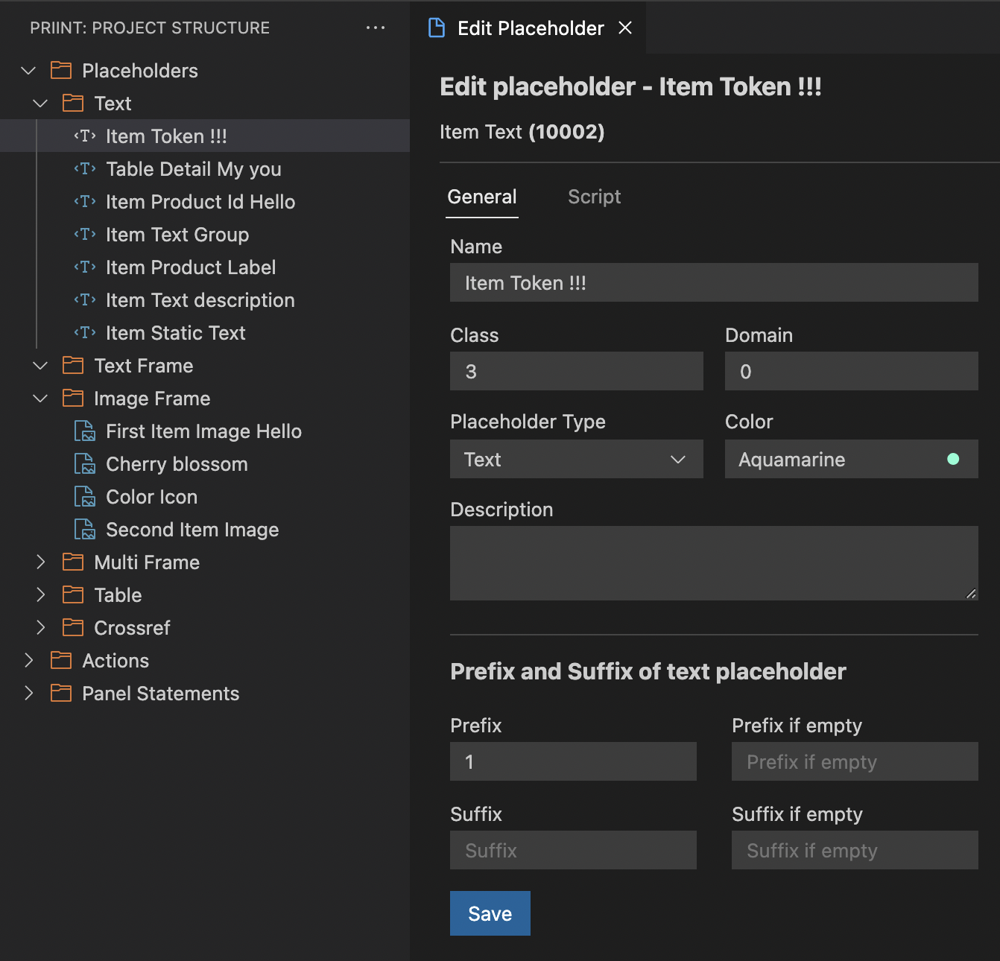
Script tab
-
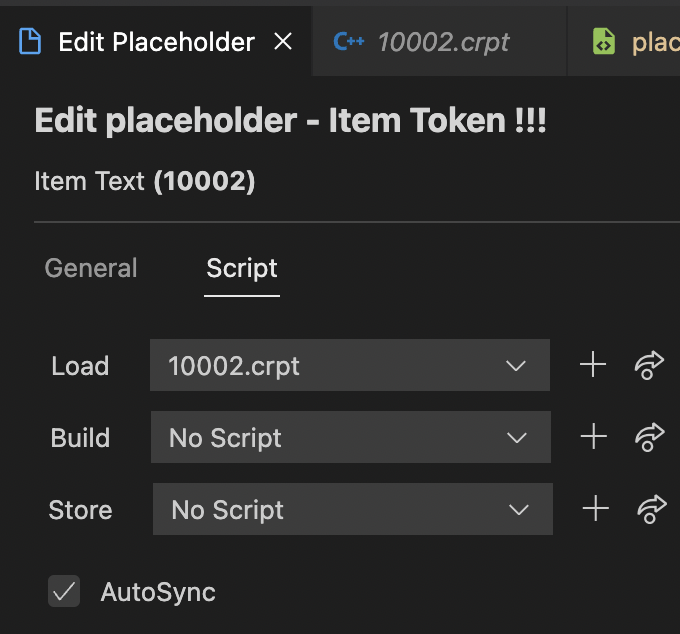
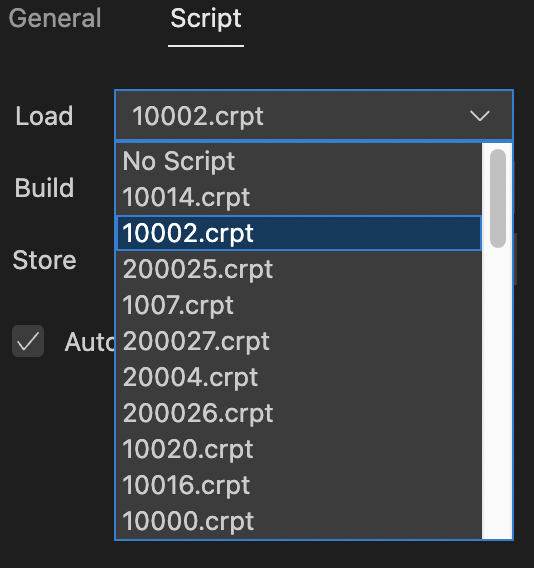
On the Script tab, you can assign which script would the placeholder load
-
You can either choose the script from a list (which is loaded from the actions folder)
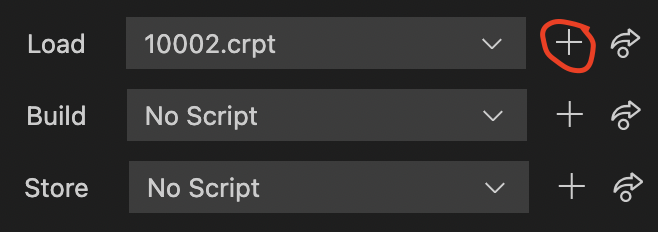
or create a new one using this button
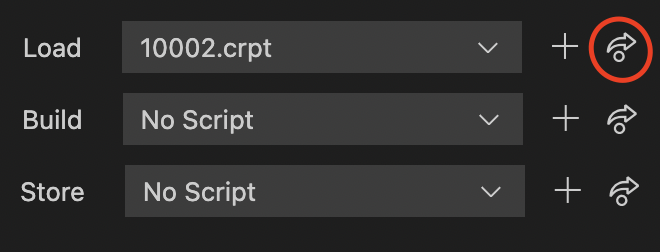
- You can also open the script for editing with this button
Don't forget to click Save on the General tab to save your changes.
Relevant XML structures
<metadata>
  <placeholder>
    <id>10002</id>
    <name>Item Token !!!</name>
    <description></description>
    <type>text</type>
    <domain></domain>
    <domainid>0</domainid>
    <class>3</class>
    <load>10002</load>
    <sync>-1</sync>
    <store>0</store>
    <lov>0</lov>
    <color name="">
      <id>0</id>
    </color>
    <style></style>
    <styleid>0</styleid>
    <syncstateinvisible>1</syncstateinvisible>
    <loadconstraint>0</loadconstraint>
    <active>1</active>
    <objectnameid>0</objectnameid>
    <prefix>1</prefix>
    <postfix></postfix>
    <prefixifempty></prefixifempty>
    <postfixifempty></postfixifempty>
    <timestamp>1573543477844</timestamp>
    <build>0</build>
  </placeholder>
  <placeholder>...</placeholder>
</metadata>