PowerPoint project
Render PPTX Documentation
Overview
Render PPTX is a template-driven PowerPoint generation engine that creates .pptx presentations from XML data.
The engine uses PowerPoint slide layouts (master slides) as templates and populates them with dynamic content from XML. New slides are generated based on layout definitions and data mappings.
The typical workflow is:
- Create a PowerPoint template.
- Define slide layouts in the Slide Master.
- Name placeholders and shapes.
- Provide XML data.
- Execute the Render PPTX process.
- Receive a generated PowerPoint presentation.
Project Structure
A Render PPTX project follows the standard project structure:
tenants/
└── <tenant>
    └── projects/
        └── <project>
            └── renderpptx/
                ├── powerpoint/
                │   └── default.pptx
                └── jobs/
                    └── demo/
                        └── data.xml
The powerpoint directory must contain a PowerPoint template.
If no specific template is configured, the renderer uses default.pptx.
Template Design
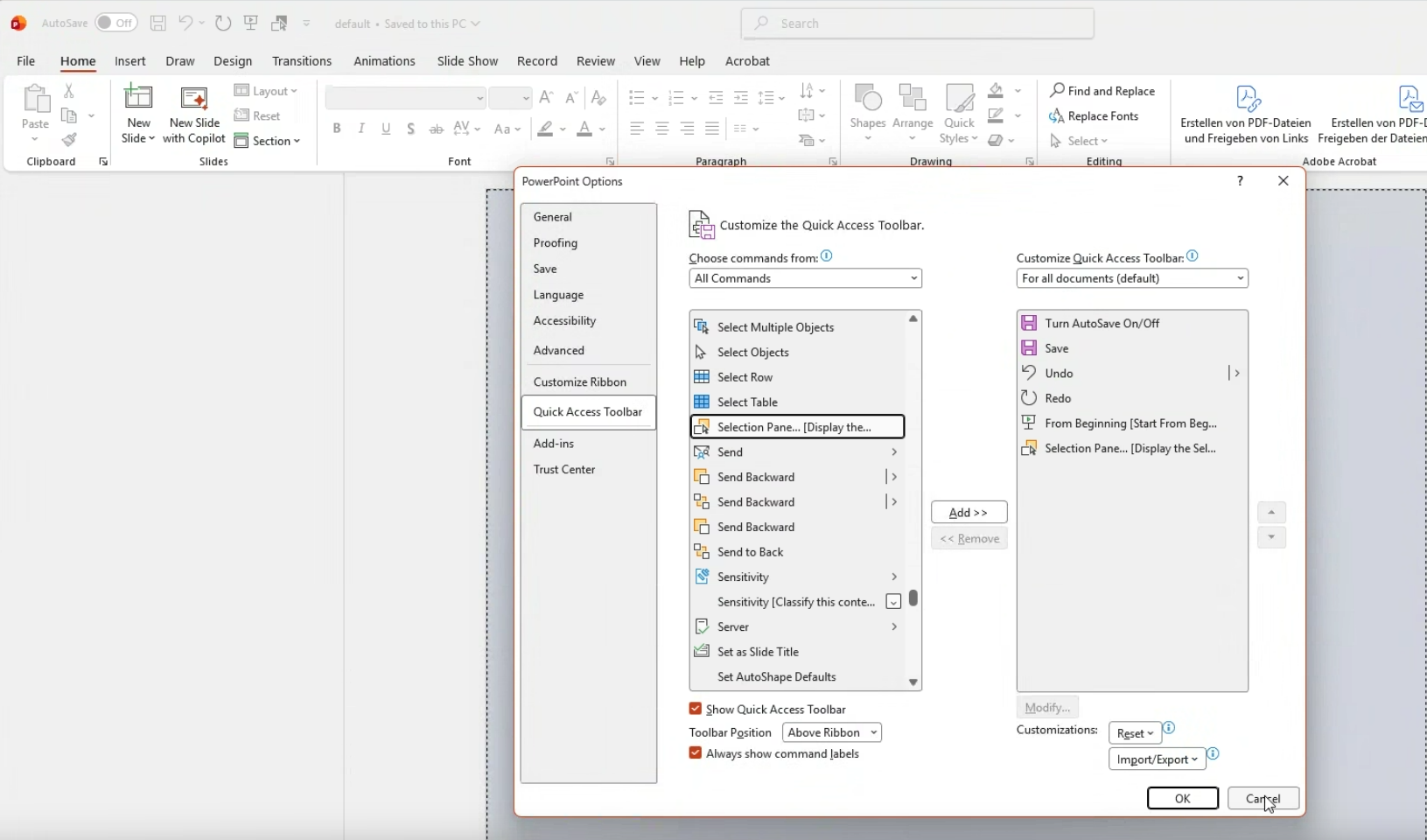
Enable the Selection Pane in PowerPoint to make it easier to identify and manage slide elements. For quicker access, consider adding it to the Quick Access Toolbar.
Using Slide Masters
All dynamic content should be designed within PowerPoint Slide Masters and Layouts.
Example layouts:
- Title Slide
- Content Slide
- Recipe Slide
Each layout acts as a reusable slide template.
When XML requests a slide using a layout name, the renderer creates a new slide based on that layout.
Example:
<slide master="Title Slide">
    ...
</slide>
Placeholder Mapping
The renderer maps XML data to PowerPoint shapes using shape names.
Naming Shapes
Open the Selection Pane in PowerPoint and assign meaningful names to shapes.
Example:
title
subtitle
recipeImage
ingredientsBody
Avoid PowerPoint-generated names such as:
Rectangle 15
TextBox 4
because they make template maintenance difficult.
XML Structure
Example:
<slides>

    <slide master="Title Slide">

        <placeholder name="title">
            Welcome
        </placeholder>

        <placeholder name="subtitle">
            Generated by Render PPTX
        </placeholder>

    </slide>

</slides>
Rendering process:
- Create slide from layout.
- Read all shapes on the generated slide.
- Match shape names with XML placeholder names.
- Inject content.
Text Rendering
Plain Text
Plain text is inserted directly into text shapes.
Example:
<placeholder name="title">
    Welcome
</placeholder>
Multiple Paragraphs
Multiple text elements create multiple paragraphs.
Example:
<placeholder name="ingredients">

    <text>Milk</text>
    <text>Eggs</text>
    <text>Flour</text>

</placeholder>
Result:
- Milk
- Eggs
- Flour
Paragraph styling (bullets, indentation, spacing) is controlled entirely by the PowerPoint template.
The XML does not define bullet formatting.
HTML Content
Text placeholders can accept HTML content.
Example:
<placeholder name="description" type="html">

<![CDATA[
<b>Bold</b><br/>
<i>Italic</i>
]]>

</placeholder>
The renderer converts supported HTML into rich PowerPoint formatting.
Note that HTML support may differ between normal text boxes and table cells.
Image Rendering
Images can be inserted into image placeholders.
Example:
<placeholder name="recipeImage">
    file:///images/pizza.jpg
</placeholder>
or
<placeholder name="recipeImage">
    https://example.com/image.jpg
</placeholder>
Supported sources:
- Local files
- Remote URLs
- Media proxy URLs
Image scaling and positioning depend on the image placeholder configuration inside PowerPoint.
Tables
Tables can be generated dynamically.
The renderer expands table content:
- Horizontally (new columns)
- Vertically (new rows)
based on the supplied data.
Example:
<table>
    ...
</table>
Important:
- Table size is not automatically constrained.
- Large datasets may overflow the slide.
- Designers must allocate enough space in the template.
Existing Slides
The renderer can preserve existing slides.
Configuration options include:
- Keep existing slides
- Insert generated slides after a specific slide index
This allows static and generated content to coexist in a single presentation.
Text Replacement
The renderer supports text replacement within existing PowerPoint text.
Example template text:
Hello {{personName}}
Data:
<personName>John Doe</personName>
Result:
Hello John Doe
This mechanism works without requiring dedicated placeholders and is useful for small dynamic sections within larger text blocks.
Supported Features
TODO
- Slide creation from layouts
- HTML text rendering
- Image placeholders
- Dynamic tables