Usage
This document contains specification of all features in the plugin
Login & Logout
-
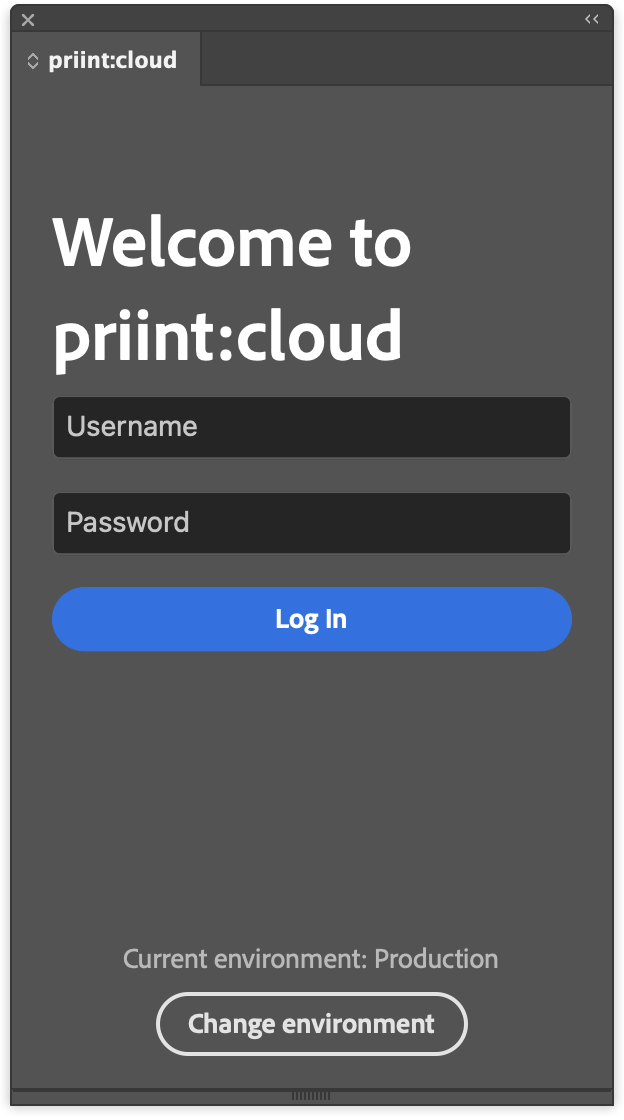
This is Login view of the plugin
-
Enter
usernameandpasswordof your priint:cloud account. -
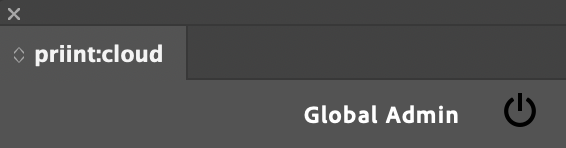
Click power icon button at the top-right of plugin for logging out
Select system environment
- User can change system environment that are using by the plugin. Default will be
production. - User must logout to change the environment. Click
Change environmentbutton to open environment view. - In environment view, user can select a environment and click
Saveto apply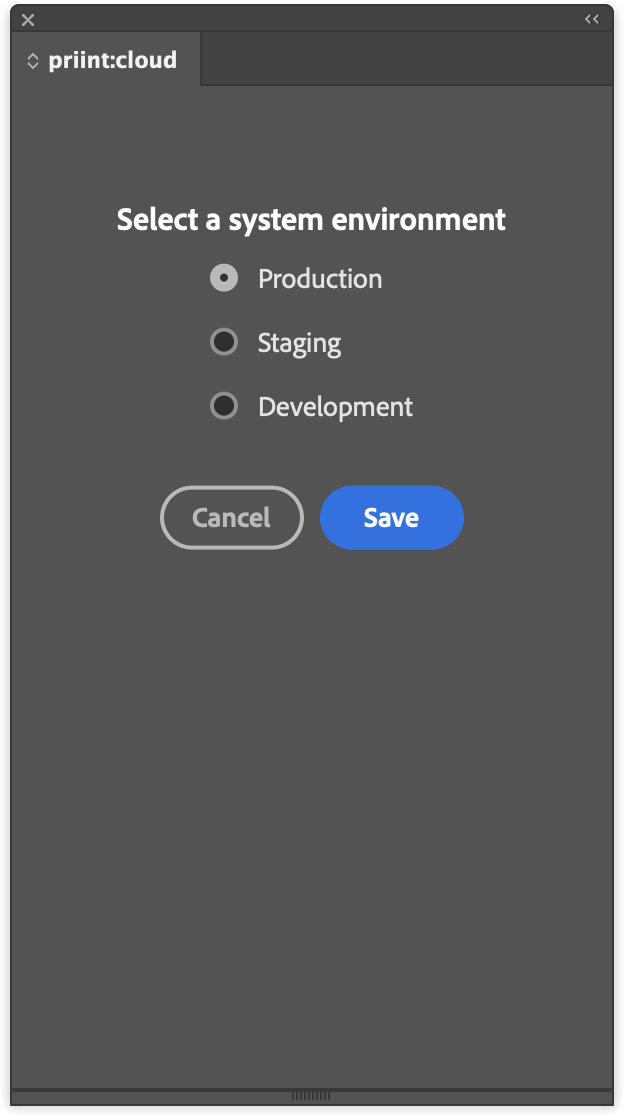
Project information
- After logged in, main view of the plugin will be appeared
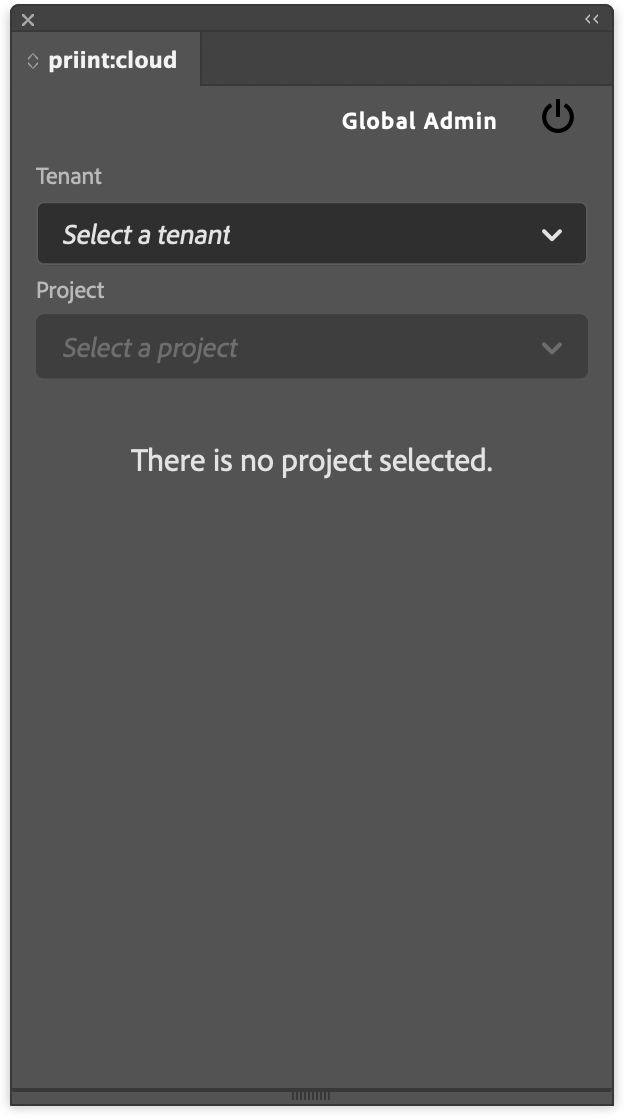
- Select Tenant and Project from the dropdown on the top to display project information
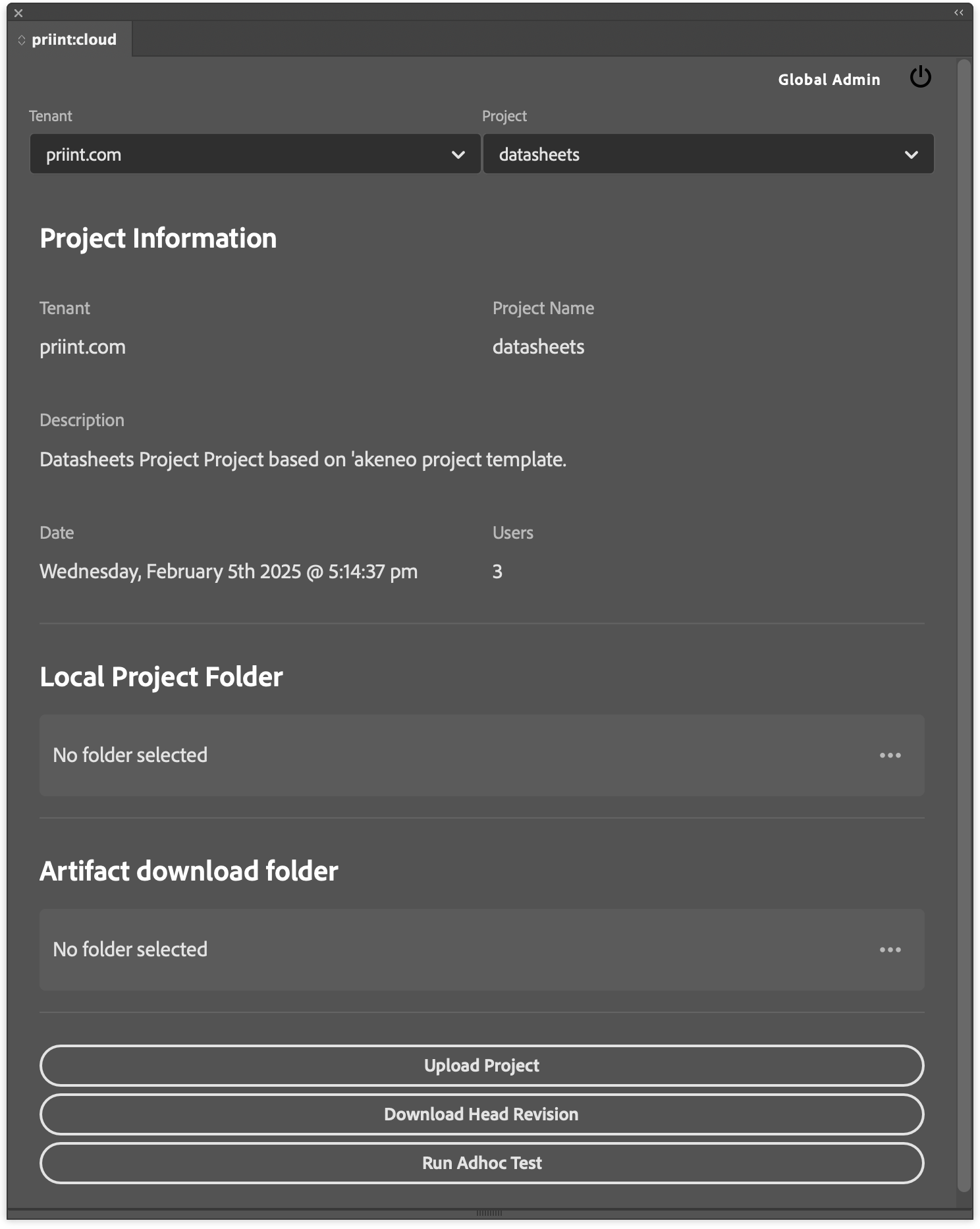
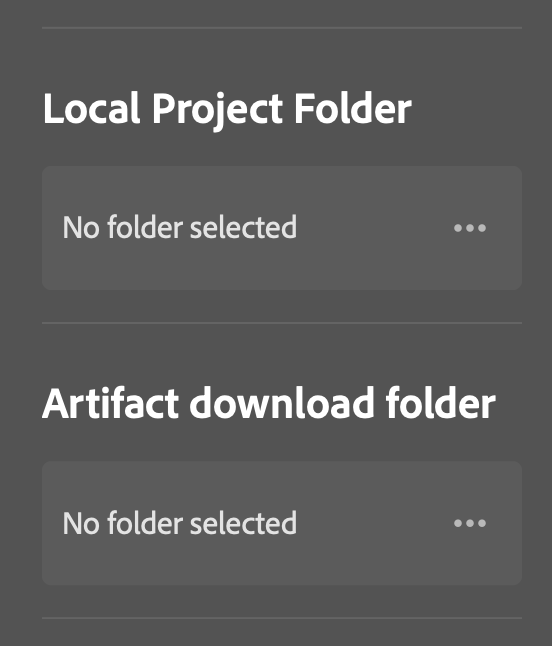
Set local folder and downloaded artifact folder
- User can map their local project folder to the project in plugin by clicking
...button. - Do the same for choosing downloaded artifacts folder where all artifacts of the project will be saved.
Upload Project
- The plugin will upload current state of project in project local folder.
- The system will auto collect files, zip it and send it to the priint:cloud server.
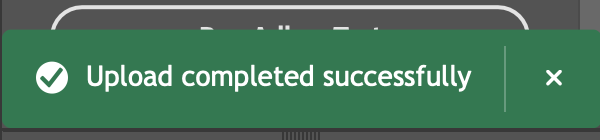
- A message wil be shown after process is done
Download Head Revision
- Clicking the button the download latest revision of selected project.
- The system will download the project and extract it to local project folder.
- After process is done, a message will be shown
Run Adhoc Test
- Clicking the button to do Adhoc testing for selected project
- The system will collect current files of project in its local folder and upload to server.
- After uploading, user can select testing options (profiles and test case) for running test
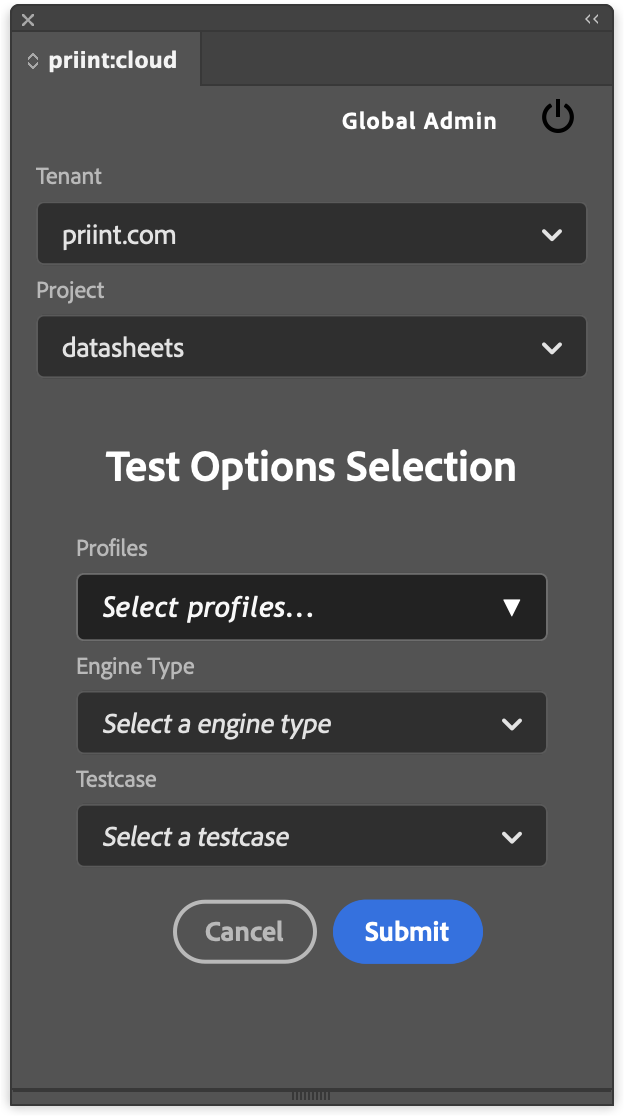
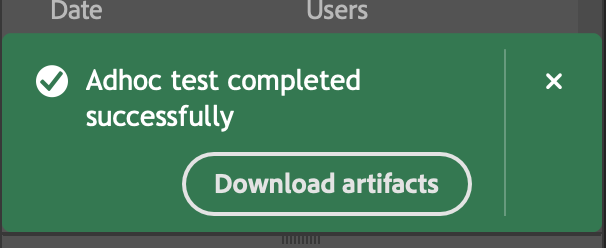
- Clicking Submit button for running test. After process is done, a message will be shown, user can choose to download artifacts