Data Files
Data files are XML files that must follow a simple scheme.
Each slide element within the XML will "produce" a new PowerPoint slide within the output.
The slide element contains a reference to the named layout (the "master" attribute). The slide element contains a series of placeholder elements with references to elements on the master layout. Elements on the master layout are typically referenced by their name. Alternatively, they can be referenced by their type.
Content for the placeholders can be put either into the content attribute or into value elements.
The content attribute is the easiest option for plain text content.
For more complex input you may need to use text elements.
For images, you should always use the content attribute to set the location (relative path to a local file or URL for a remote resource on the Internet).
Data files allow setting the document properties of the PDF presentation using the <metadata/>
element. Each property will correspond to a field in the document properties dialog.
A Simple Example
<data>
<metadata
subject="Fringilla et gravida"
description="Fringilla nunc et leo gravida. Auctor malesuada consequat accumsan eget id consectetuer tellus dolor"
/>
<slide master="MY_FIRST_LAYOUT">
<placeholder name="TITLE" content="Lorem ipsum"/>
<placeholder name="LEFT_BULLET_LIST" >
<value>Lorem ipsum dolor sit amet consectetuer dolor leo ac adipiscing mus. </value>
<value type="html">Ac netus <b>tellus</b> nibh enim Aenean magna mollis wisi tempus Cum. </value>
<value type="html"><![CDATA[
<strong><em>Suspendisse</em> suscipit</strong> porttitor & sem id dictumst quis vel.
]]></value>
</placeholder>
<placeholder name="right-image" content="https://my.pim/images/pic1.png"/>
</slide>
<!-- add more <slide/> elements here -->
</data>
XML Schema
The XML schema is described in a simple fashion here.
- Each line is a node in the schema.
- XML attributes start with
@. All attributes are optional unless otherwise specified. - Text content (plain or as CDATA) is denoted as
#textContent - All other nodes are XML elements.
- Indentation defines the nesting of elements in the XML tree.
- Elements that can occur multiple times are annotated as
0..nfor "zero to unlimited instances".
data                         (represents a PowerPoint document)
    metadata                 (PowerPoint document properties)
        @category
        @company
        @creator
        @description
        @identifier
        @keywords
        @language
        @manager
        @revisionf
        @subject
        @title
        @version
        custom (0..n)        (custom properties as key-value elements)
            @key
            @value
    slide (0..n)             (represents a PowerPoint slide)
        @master              (name of the layout in the slide master)
        placeholder (0..n)
            @name            (name of the placeholder shape on the layout)
            @type            (enum, see below)
            @content         (simple plain text content, otherwise use <value/>)
            @master          (name of a master shape on the layout that contains the styling)
            @altText         (alternative text shown for pictures, but also on other shapes)
            value (0..n)
                @type        (html|plain, plain is the default)
                @level       (nesting for ordered or unordered lists)
                #textContent (actual text or HTML markup to be inserted)
List of Placeholders by Type
Note: It is recommended to refer to layout shapes by their name instead of their type.
Placeholder types are defined by PowerPoint not by priint. Usage is in uppercase only. See the example below:
<placeholder type="CENTERED_TITLE" content="Lorem ipsum" />
The complete list of supported shape types:
- TITLE
- BODY
- CENTERED_TITLE
- SUBTITLE
- DATETIME
- SLIDE_NUMBER
- FOOTER
- HEADER
- CONTENT
- CHART
- TABLE
- CLIP_ART
- DGM
- MEDIA
- SLIDE_IMAGE
- PICTURE
- VERTICAL_OBJECT
- VERTICAL_TEXT_TITLE
- VERTICAL_TEXT_BODY
Special Attributes
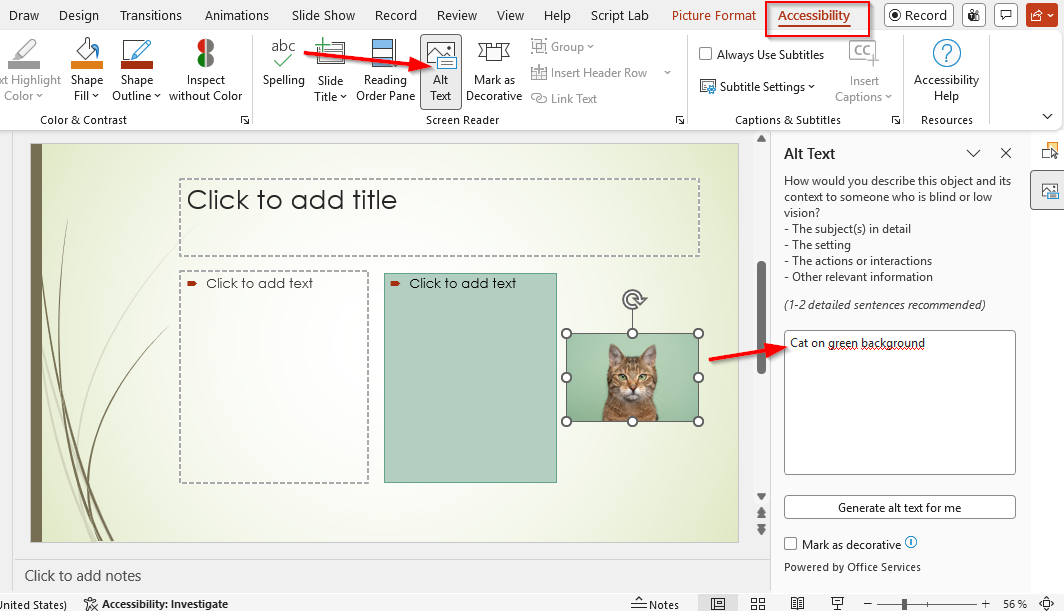
altText
You can set the alternative text for images and other shapes to help with accessibility.
<placeholder name="IMAGE"
             content="https://example.com/green/cat.png"
             altText="Cat on green background"
/>
level
Level is used for ordered and unordered lists. Level is an integer starting at 1. For each list item, a new paragraph is inserted. If the level attribute is set, the indentation level of the new paragraph will be increased accordingly. The general indentation style is defined by placeholder shapes on the master layout.
<placeholder name="TEXT_LIST">
  <value level="1">Item 1</value>
  <value level="2">Item 2</value>
</placeholder>
master (for placeholder)
Reserved for future use.